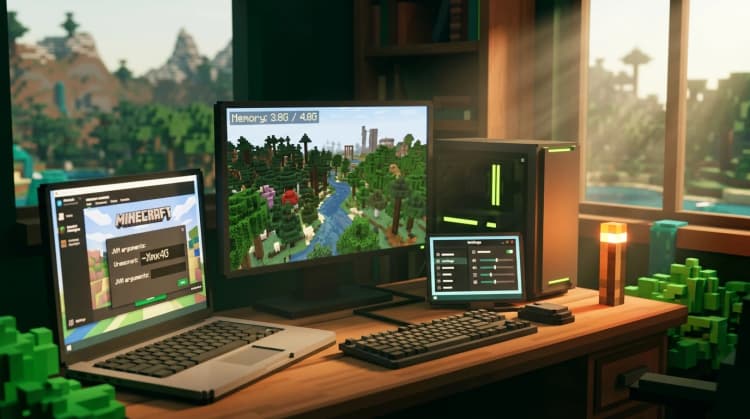
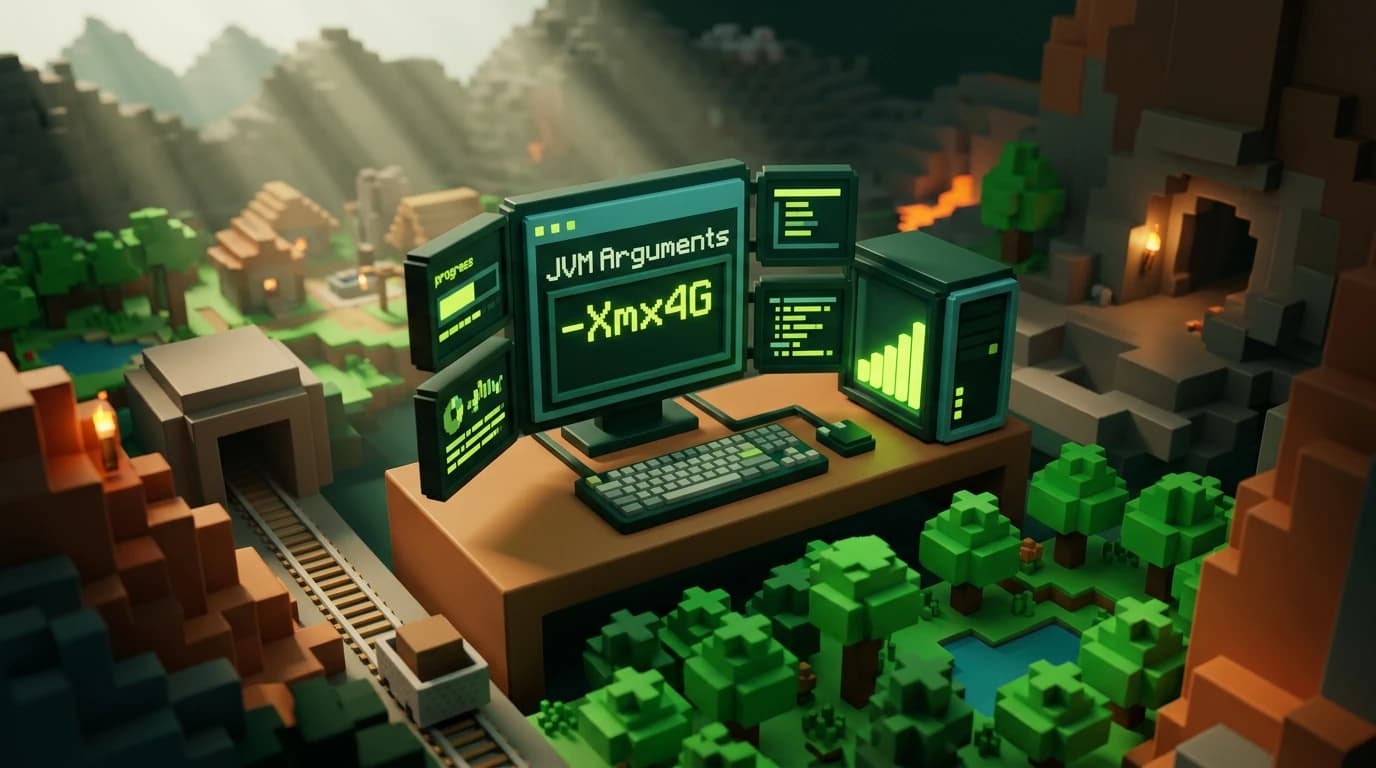
To learn how to allot more ram to minecraft, open the Java Edition Launcher, select Installations, edit your profile, choose More Options, and change the JVM argument beginning with -Xmx. Replace its value with a safe amount such as -Xmx4G, then save and launch the game. This setting applies to Java Edition, not Bedrock Edition. ([help.minecraft.net](https://help.minecraft.net/hc/en-us/articles/39083573916941?utm_source=openai))
How to allot more ram to minecraft
Minecraft Java Edition uses a Java memory limit called the heap. The -Xmx argument sets the maximum RAM the game can use. For example, -Xmx4G allows Minecraft to use up to 4 gigabytes of memory, while -Xmx6G raises the limit to 6 gigabytes.
Giving Minecraft more RAM can help with large modpacks, high render distances, shaders, resource packs, and worlds with many loaded chunks. It does not automatically increase your graphics performance, and assigning too much can make Windows or macOS run out of memory.
On current Java releases, the default allocation may already be 4 GB. If your computer has less than 4 GB of total memory, reduce the allocation rather than increasing it. ([help.minecraft.net](https://help.minecraft.net/hc/en-us/articles/39083573916941?utm_source=openai))
Check how much RAM your computer has
Before changing the setting, check your computer’s total installed memory. Minecraft shares RAM with your operating system, browser, voice chat, launchers, and other programs, so you should not assign all available memory to the game.
- Windows: Open Settings, select System, choose About, and check Installed RAM.
- macOS: Open the Apple menu and select About This Mac.
- Linux: Open your system information panel or use the memory details provided by your desktop environment.
A practical starting point is to leave at least half of your total RAM available for the operating system and other programs. The official troubleshooting guidance also identifies half of system memory as the recommended maximum on 64-bit systems. ([help.minecraft.net](https://help.minecraft.net/hc/en-us/articles/39083573916941?utm_source=openai))
- 4 GB total RAM: Use about 2 GB for Minecraft.
- 8 GB total RAM: Start with 4 GB for Minecraft.
- 16 GB total RAM: Start with 6 GB or 8 GB for Minecraft.
- 32 GB total RAM: Use more only if a modpack or large world actually needs it.
Change RAM allocation in the Minecraft Launcher
Open the installation settings
- Open the Minecraft Launcher and sign in.
- Select Minecraft: Java Edition from the left side of the launcher.
- Open the Installations tab.
- Find the profile you use to play and select its three-dot menu.
- Choose Edit.
- Open More Options to reveal the JVM Arguments field.
Changing the installation profile is important because each profile can use different game versions, folders, and JVM settings. Edit the profile you actually launch instead of changing a profile that you no longer use.
Change the -Xmx value
- Look for the memory argument in the JVM Arguments field. It usually appears as -Xmx2G or -Xmx4G.
- Change only the number and keep the G at the end. For example, change -Xmx2G to -Xmx4G.
- Leave the other JVM arguments unchanged unless you know what they do.
- Select Save.
- Launch the same installation and test your normal world or server.
Make a copy of the original JVM Arguments field before editing it. If the launcher stops starting Minecraft, paste the original text back or restore the previous -Xmx value. Mojang’s support instructions specifically recommend saving the original arguments so you can reverse syntax mistakes. ([help.minecraft.net](https://help.minecraft.net/hc/en-us/articles/39083573916941?utm_source=openai))
How much RAM does Minecraft need?
The right amount depends on the edition, game version, render distance, mods, shaders, resource packs, and the size of the world you are loading. More RAM is most useful when Minecraft reports out-of-memory errors, crashes while loading, or stutters while loading large amounts of content.
- Vanilla Java Edition: Start with 2 GB to 4 GB, depending on your version and computer.
- Large resource packs or shaders: Try 4 GB to 6 GB, but remember that shaders rely heavily on the graphics card.
- Modded Minecraft: Start around 4 GB to 8 GB, then increase it only when the pack’s requirements or crash reports justify doing so.
- Very large modpacks: The pack’s documentation may recommend a specific amount, but never exceed what your computer can spare.
Do not assume that a higher allocation always means higher FPS. Frame rate is also affected by your processor, graphics card, video settings, simulation distance, render distance, and Java garbage collection. If Minecraft already runs smoothly, increasing the heap may produce no visible improvement.
Allocate RAM to a Minecraft Java server
A locally hosted Java server has its own memory allocation separate from the Minecraft client. If you play and host on the same computer, both processes need RAM. You must reserve enough memory for the operating system and your game client before assigning memory to the server.
Start the server from a command prompt or script with the -Xms and -Xmx options. For example:
java -Xms2G -Xmx4G -jar server.jar nogui
Here, -Xms2G sets the server’s starting heap size and -Xmx4G sets its maximum heap size. Replace server.jar with the exact name of your server file. The server must be launched from the folder containing that file, or you must provide its full path.
- Small vanilla server: Start with 2 GB to 4 GB.
- Several players or a large world: Start with 4 GB and monitor performance.
- Modded server: Follow the modpack’s server requirements and leave memory for every player’s client.
The official server setup guidance notes that the amount of RAM dedicated to the server affects how many players you should support. A higher player limit does not guarantee smooth performance because world activity, entities, redstone, plugins, and mods also affect server load. ([help.minecraft.net](https://help.minecraft.net/hc/en-us/articles/360058525452-How-to-Setup-a-Minecraft-Java-Edition-Server?utm_source=openai))
Java Edition and Bedrock Edition differences
The launcher JVM Arguments method applies to Minecraft: Java Edition. Java Edition runs through a Java runtime and exposes the -Xmx memory setting in installation profiles.
Bedrock Edition does not use this same launcher-based Java heap setting. On Windows, consoles, and mobile devices, Bedrock manages memory through the platform and game. You cannot use -Xmx4G to change Bedrock’s allocation.
Realms and online servers also do not let you increase the RAM used by your personal game client through the launcher. If a hosted server needs more resources, that is a server-host configuration issue rather than a client setting.
Fix problems after increasing Minecraft’s RAM
Minecraft crashes during startup
Lower the -Xmx value and confirm that the argument uses the correct format. Use a capital G for gigabytes, remove accidental spaces inside the value, and make sure the field still contains the rest of the original JVM arguments.
The computer becomes slow
You assigned too much memory or left too many programs running. Reduce Minecraft’s allocation, close browsers and launchers, and test again. On a computer with 8 GB of RAM, assigning 6 GB or 8 GB can leave too little memory for the operating system.
The game still stutters
More RAM may not be the solution. Lower render distance and simulation distance, disable demanding shaders, reduce resource-pack resolution, update graphics drivers, and check whether the world is generating new terrain. A stable allocation with sensible video settings is usually better than an oversized heap.
The launcher resets the setting
Check that you are launching the same installation profile you edited. Different profiles can have separate JVM arguments, game directories, and versions. If you use a third-party launcher, its memory controls may be located in a separate settings screen.
Common RAM allocation mistakes
- Assigning all system RAM to Minecraft.
- Changing -Xms but forgetting to change -Xmx.
- Editing one launcher profile and starting another.
- Expecting more RAM to fix a weak graphics card or slow processor.
- Using a large allocation for vanilla Minecraft when the game does not need it.
- Changing several JVM arguments at once, making errors harder to identify.
Increase the allocation in small steps, test the game after each change, and keep the smallest value that solves the problem. That leaves more memory available for your operating system and makes troubleshooting easier.